 BlurData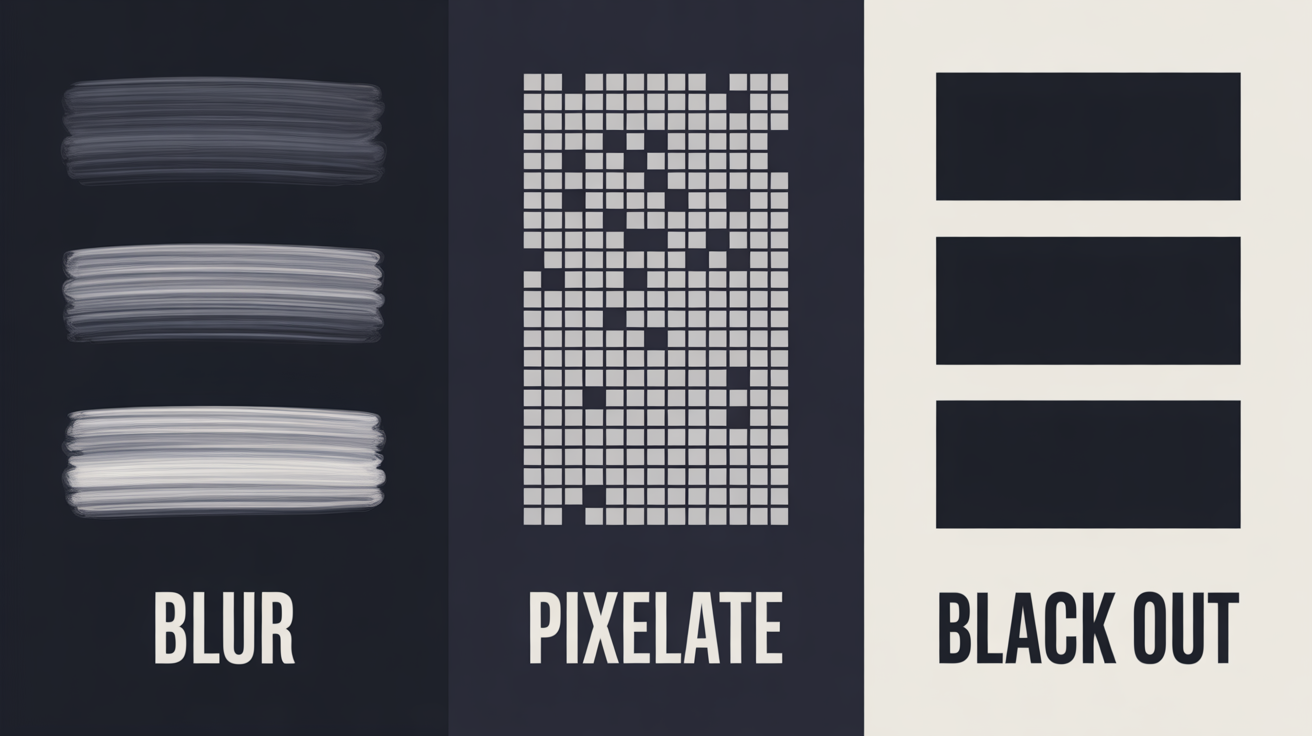
When you need to hide sensitive information in a screenshot or document, you have three main options: blur it, pixelate it, or black it out. They all look like they do the same job. But do they?
The answer depends on two things: what format you're working with (image vs. PDF) and whether the underlying data is actually removed or just visually hidden. Let's break down each method.
Method 1: Gaussian Blur
Blurring applies a Gaussian blur filter that smears the pixels in a selected area, making text unreadable. It's the most common method you'll see in tutorials and privacy tools.
How It Works
The blur algorithm averages the color values of neighboring pixels, effectively destroying the sharp edges that make text readable. The stronger the blur radius, the more the original information is lost.
Pros
- Highly effective for text. A strong Gaussian blur on text destroys enough pixel data that reconstruction is practically impossible
- Looks professional. Blurred areas clearly signal "this was intentionally hidden" without looking harsh
- Irreversible when baked into an image. Once the blurred image is saved as a flat PNG or JPG, the original pixel data is gone
Cons
- Weak blur can be partially reversed. If the blur radius is too low, it may be possible to guess short strings like phone numbers
- Not suitable for simple patterns. A lightly blurred 4-digit PIN is easier to guess than a blurred paragraph of text
Bottom line: Use a strong blur radius, especially for short strings like numbers or codes. For multi-word text, blur is very effective.
Method 2: Pixelation (Mosaic)
Pixelation divides the selected area into a grid of large colored blocks, replacing the fine detail with chunky squares. It's the classic "censored" look you see on TV.
How It Works
The algorithm splits the area into blocks (e.g. 10x10 pixels) and replaces each block with a single average color. The result is a mosaic pattern that obscures the original content.
Pros
- Visually obvious. Everyone recognizes pixelation as intentional censoring
- Quick and simple. Most image editors offer pixelation as a basic filter
Cons
- Research has shown pixelation can be reversed. In 2022, researchers demonstrated that machine learning models can reconstruct text from pixelated images with surprising accuracy, especially for common fonts and short strings
- Block size matters enormously. Small pixel blocks retain too much information. Large blocks are safer but still less secure than blur for text
- Predictable patterns help attackers. If someone knows the font and approximate text length, pixelated text becomes easier to decode
Bottom line: Pixelation is less secure than blur for hiding text. If you use it, make sure the block size is large enough that individual characters are completely unrecognizable.
Method 3: Black Out (Solid Color Overlay)
The simplest approach: cover the sensitive area with a solid black (or colored) rectangle. Nothing visible underneath. Problem solved — or is it?
On Images: It Works (If Done Right)
When you draw a black rectangle on an image and save it as a flat PNG or JPG, the pixels underneath are permanently replaced. The original data is gone. This is simple and effective.
On PDFs: This Is Where People Get Burned
Here's the critical distinction that has caused countless data breaches, including the infamous Epstein documents failure:
A black rectangle drawn on a PDF is usually just a visual overlay. The text underneath is still there in the file structure. Anyone can:
- Select and copy the "hidden" text
- Search the document for the "redacted" content
- Remove the overlay layer to reveal everything
This happens because PDF files separate content from visual presentation. Drawing a shape on top of text doesn't delete the text — it just covers it up, like placing a sticky note over a printed page.
Bottom line: On images, black bars work fine. On PDFs, they're dangerous unless you use true redaction that removes the underlying content from the file structure.
The Real Question: Is the Data Actually Removed?
Regardless of which visual method you choose, the only thing that truly matters is: is the original data still in the file?
For Images (PNG, JPG)
When you apply any redaction method (blur, pixelate, or black out) and export the result as a flat image file, the original pixels are permanently replaced. The data is gone. All three methods are permanent in this context.
The difference is only in how much information leaks through the filter:
- Black out — zero information leaks (solid color)
- Strong blur — negligible information leaks
- Pixelation — some information may leak (color averages per block)
For PDFs
This is where the stakes are much higher. PDFs are structured documents, not flat images. Visual changes (drawing shapes, adding highlights) don't modify the text data underneath.
True PDF redaction must:
- Mark areas for redaction
- Permanently delete the text content from the PDF's internal data structure
- Replace the area with a visual indicator (colored rectangle)
- Save the file with the content irreversibly removed
If your tool only does step 1 and 3 without step 2, your "redacted" PDF still contains all the sensitive data.
Quick Comparison
| Method | Images | PDFs | Reversible? |
|---|---|---|---|
| Blur | Secure (strong radius) | N/A — needs true redaction | No (if strong enough) |
| Pixelate | Moderate risk | N/A — needs true redaction | Partially (ML attacks) |
| Black out | Secure (flat export) | DANGEROUS as overlay only | Yes on PDFs, No on images |
| True redaction | N/A | Secure (content removed) | No |
What BlurData Does Differently
BlurData is a macOS app that handles both scenarios — images and PDFs — with the right approach for each:
For screenshots and images (JPG, PNG): BlurData automatically detects sensitive data — emails, names, addresses, monetary amounts, account numbers, license plates, IP addresses, and URLs — and applies a blur to hide them. The result is exported as a flat image where the original text data no longer exists.
For PDF documents: BlurData uses native PDF redaction that removes the actual content from the file structure. This isn't a visual overlay — the text is permanently deleted from the document. There's nothing to "unhide" because the data simply isn't in the file anymore.
The key advantage is that all of this happens automatically and entirely offline on your Mac. You don't need to manually identify every piece of sensitive data — the app detects it for you. And since nothing is uploaded to any server, your documents never leave your computer.
If you work with both screenshots and PDFs, having a tool that understands the difference between image redaction and PDF redaction is essential. The wrong approach for the wrong format is how data breaches happen.
Takeaways
- For images: Blur with a strong radius is the most reliable method. Pixelation is riskier. Black bars work but blur looks more professional.
- For PDFs: The visual method doesn't matter. What matters is whether the content is actually removed from the file. Only true PDF redaction tools do this.
- Don't trust what you see. A document that looks redacted may still contain all the sensitive data. Always verify with a tool that performs real content removal.
- Use the right tool for the format. An image editor's blur won't help you with a PDF. A PDF annotation tool's black rectangle won't truly redact. You need purpose-built redaction software.